> ## Documentation Index
> Fetch the complete documentation index at: https://docs.fortytwo.network/llms.txt
> Use this file to discover all available pages before exploring further.
# Integration with Third-Party Chat Apps
Use Fortytwo with desktop or web chat clients that support **custom/third-party API backends**.\
This page currently covers [Jan ](https://www.jan.ai/) and will be expanded with other apps over time.
Prerequisites:
**Base URL:** `https://api.fortytwo.network/v1`
**Network access to:** `https://api.fortytwo.network/`
**Authentication Token:** `YOUR_FORTYTWO_API_KEY`
**Keep your API key secure!** Your API key should be treated like a password. Never share it publicly or commit it to version control systems.
Download and install Jan from the official website, [jan.ai ](https://www.jan.ai/).
Navigate to **Settings** → **Model Providers**.
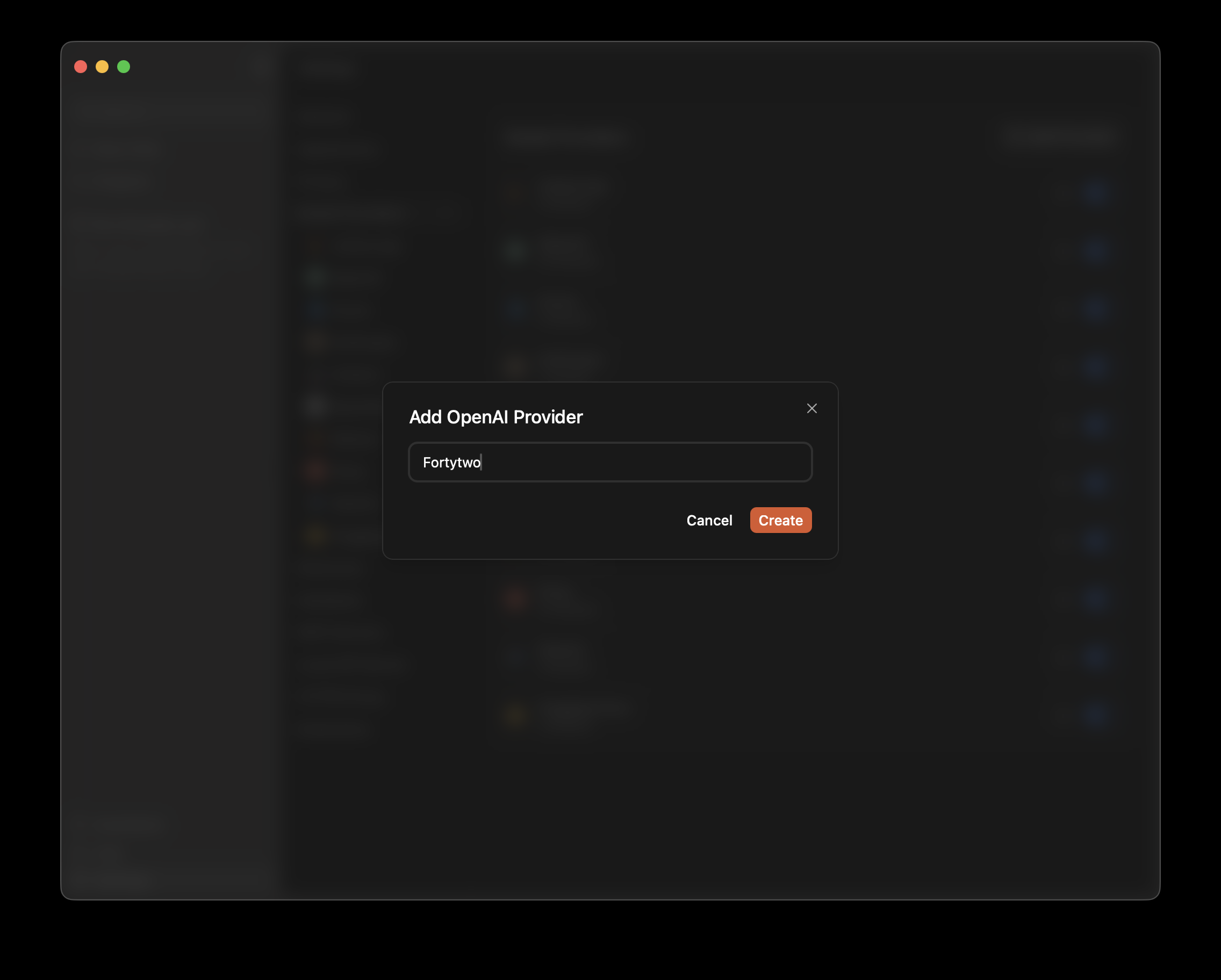
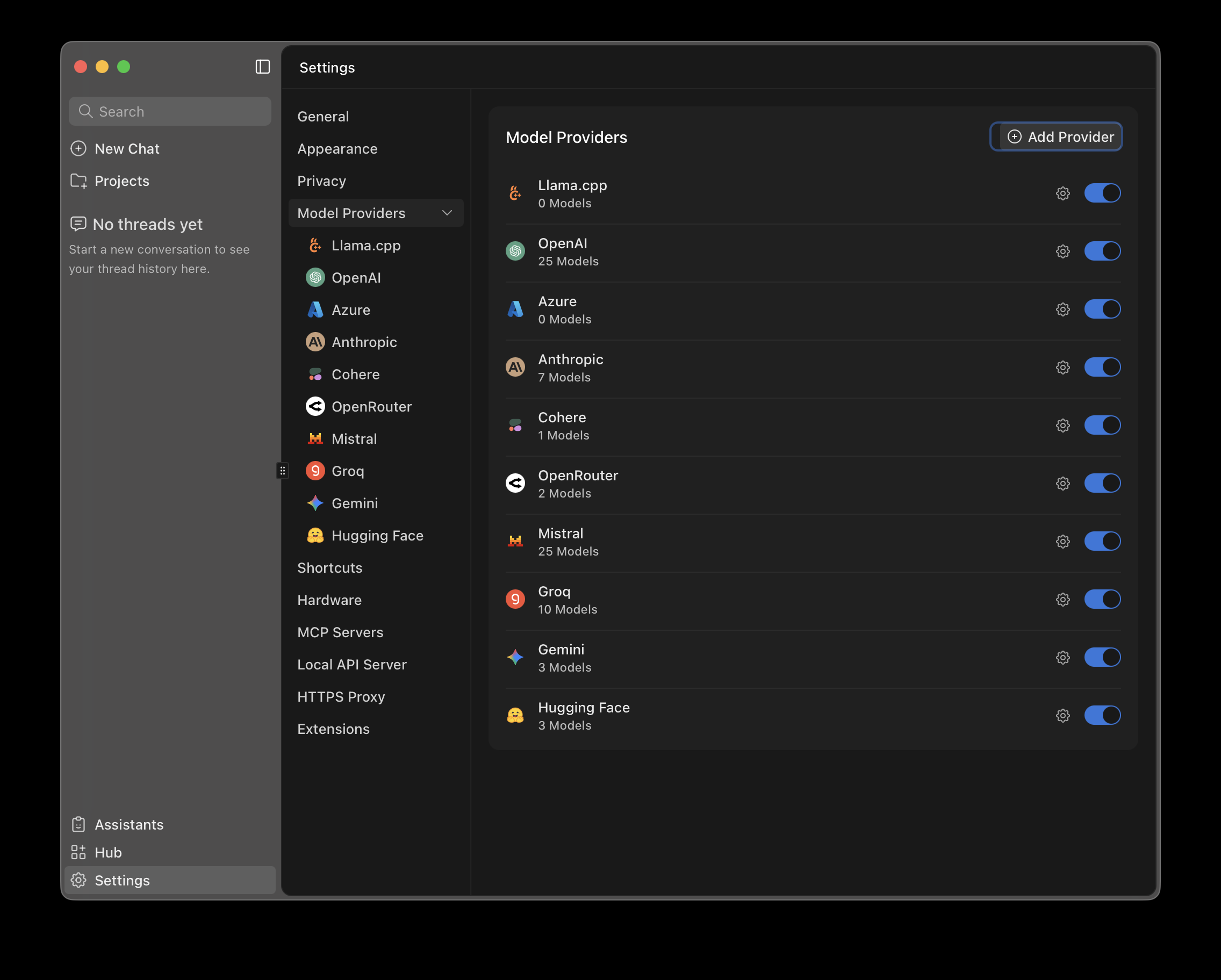 Click `Add Provider` and enter a name, for example, **Fortytwo**.
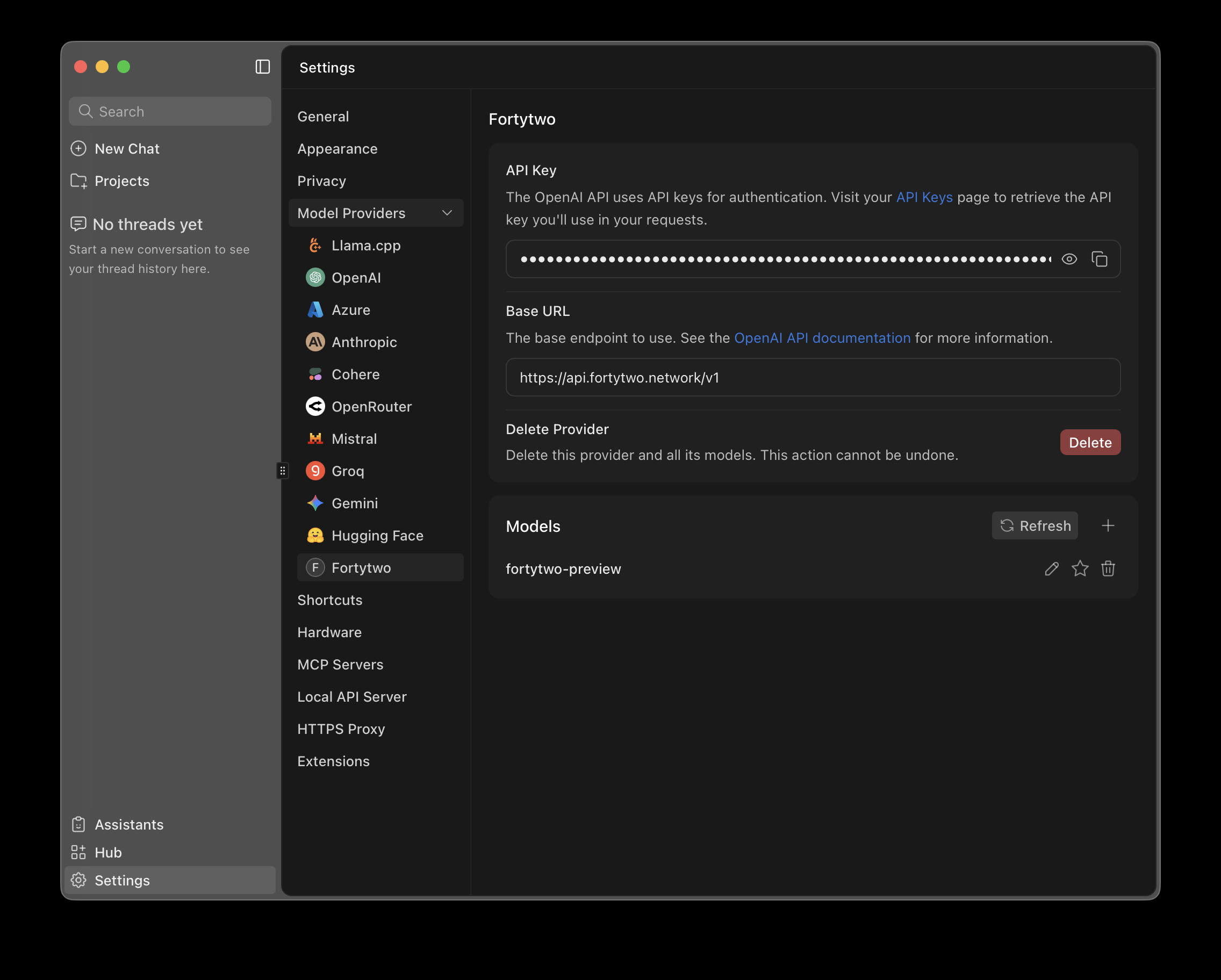
 Configure the provider:
* **API Key:** Enter `YOUR_FORTYTWO_API_KEY`
* **Base URL:** `https://api.fortytwo.network/v1`
* Click **Refresh** to load available models.
After those fields are completed, the Fortytwo model will appear in the Models list.
Configure the provider:
* **API Key:** Enter `YOUR_FORTYTWO_API_KEY`
* **Base URL:** `https://api.fortytwo.network/v1`
* Click **Refresh** to load available models.
After those fields are completed, the Fortytwo model will appear in the Models list.
*Please note that several Fortytwo model presets may be available at the same time, and their names may differ from those shown in the illustrations.*
If no models appear after clicking **Refresh**, check that the Base URL and API key have been entered correctly.
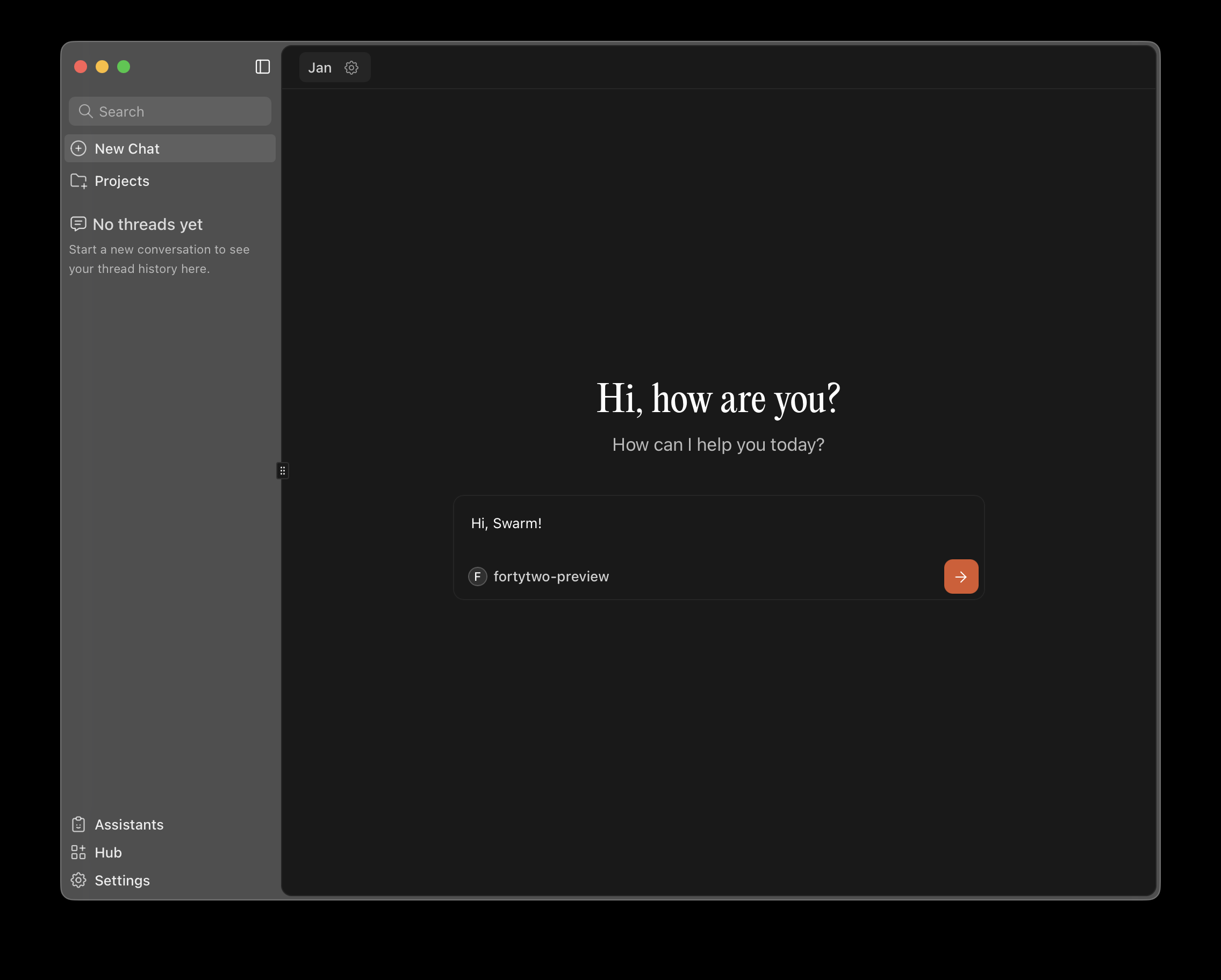
 Create new chat → **Select a model** — Under Fortytwo provider, select an available model from the list to start using it → **Start chatting**.